Facecam frame
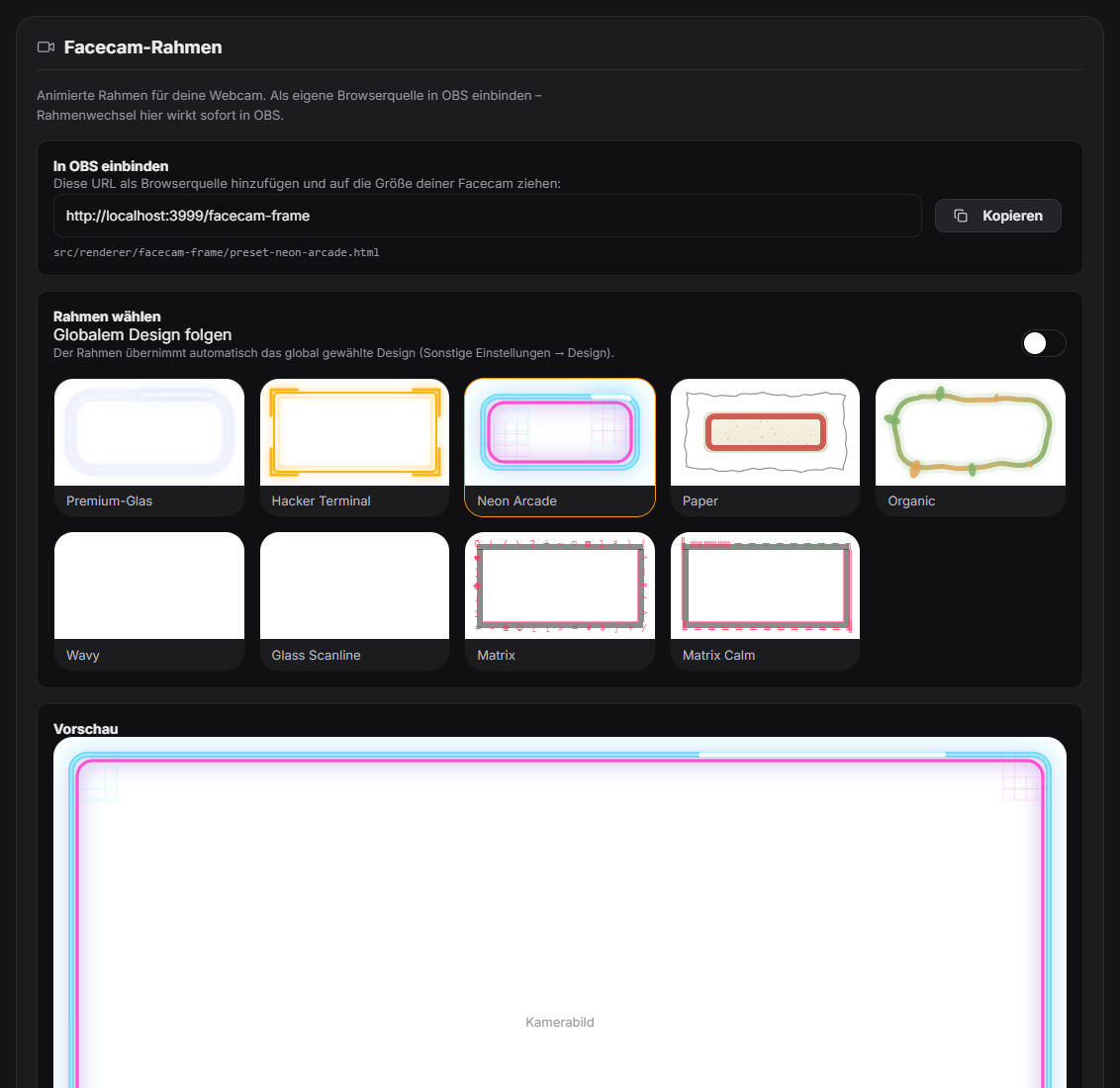
The facecam frame is its own small overlay source that you layer over your real facecam in OBS. Five animated frame styles match the five cross-module appearance presets: Premium Glass (subtle glass shimmer), Hacker Terminal (amber double frame with corner brackets, flickering scanlines), Neon Arcade (cyan/magenta neon, running light), Paper (paper border with grain) and Organic (green-honey vines that grow on events). Every frame visibly reacts to follows, subs and donations and can optionally show a brief thank-you text for supporters. "Follow global design" makes the frame automatically pick up the globally chosen design and switch along with it. Colors, strength, glow and corners can be adjusted further.
Trigger Always visible, additionally reacts to follow/sub/donation events.
Requirements
- Free.
- Needs its own window capture in OBS (separate from the main overlay window).
Step by step
- In the Facecam tab, pick a frame style (or enable "Follow global design") and adjust color/strength/glow/corners.
- Add the "Zappify - Facecam" window as its own window capture in OBS and place it over your actual facecam source.
- Adjust size/position so the frame lines up exactly around the facecam source.
- Optionally enable a thank-you text for supporters.
Last updated: 10 September 2026