OBS filters
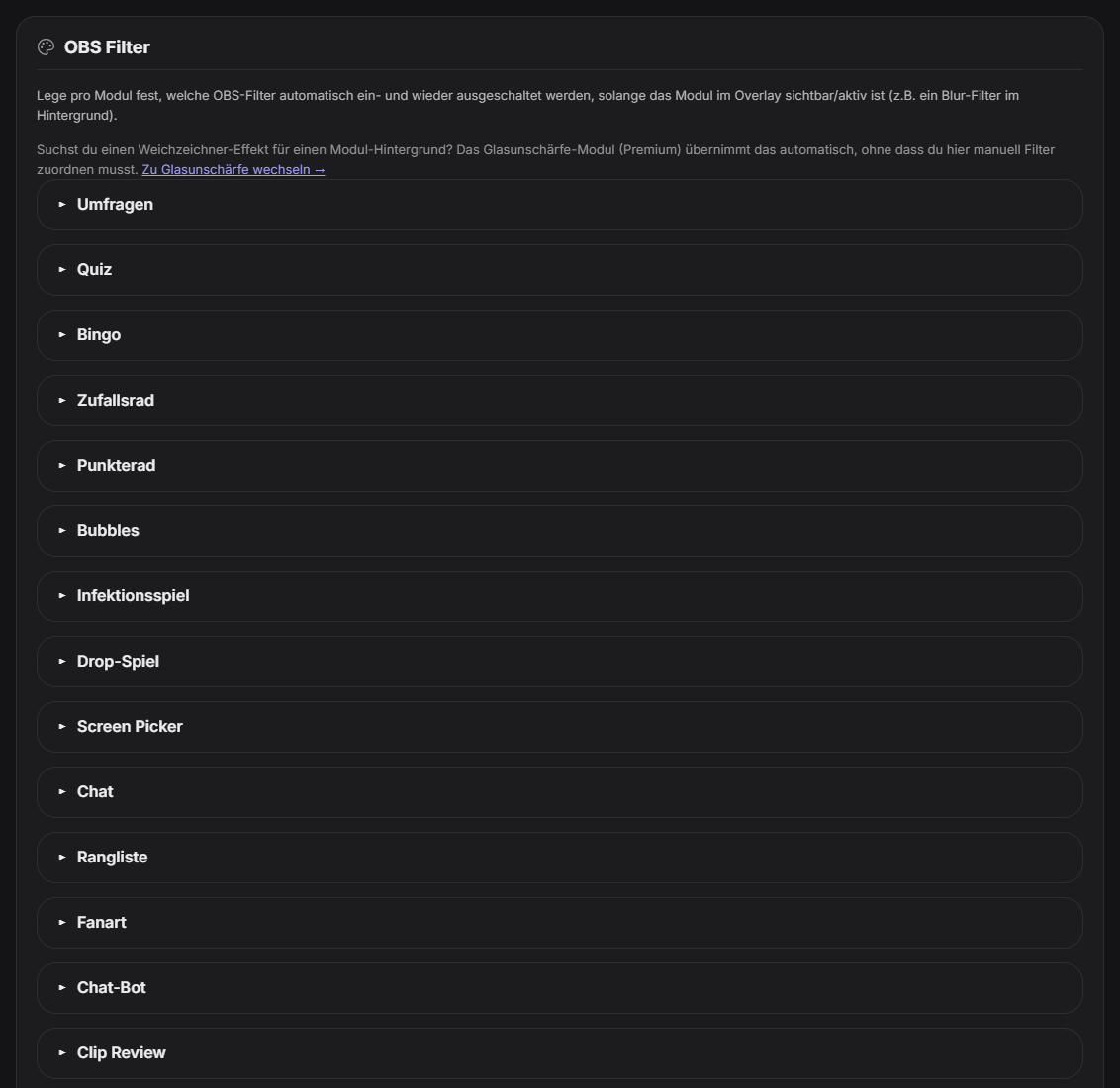
In the “OBS Filter” tab you decide per module which OBS filters are switched on automatically while the module is visible in the overlay – and switched off again afterwards (e.g. a blur filter on the game background). For each module you pick the source and filter from OBS (dropdown, read live from OBS) or type the names by hand when OBS is not connected. You can assign several filters per module. The “Delay when switching off” (ms) keeps the filter on briefly after the module so the effect fades out cleanly. Several modules can share the same filter – it only switches off once none is active. For a blur behind module cards the Glass Blur module (premium) does this automatically.
Trigger “OBS Filter” tab in the Control Panel (Design group).
Requirements
- Free.
- OBS connection (for the dropdown selection; names can also be typed by hand).
Step by step
- Open the “OBS Filter” tab and check that “Connected to OBS” is shown.
- For the desired module choose source and filter (or type the names exactly as in OBS); use “+ Filter” for more.
- Optionally set the delay when switching off in milliseconds.
- Save; the next time the module appears Zappify switches the filter on and afterwards off again.
- “Refresh from OBS” reloads the source and filter lists.
If it doesn't work
- The filter does not switch: source and filter names must match OBS exactly; check the OBS connection.
- No dropdown entries: OBS is not connected – type the names by hand or connect first.
- The filter stays on: another module using the same filter is still active; it only goes off once none is.
Last updated: 7 November 2026