End screen
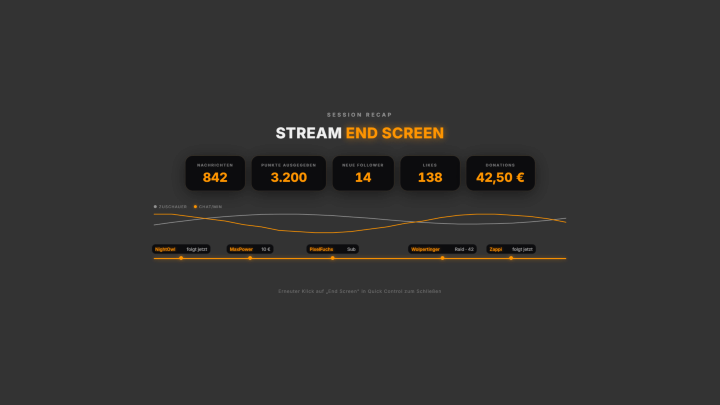
Shows a summary of the session at the end of the stream — duration, collected key figures (e.g. new followers, peak viewers, donations, raids), the top chatters and a timeline of the most important statistics. You show it via Quick Control, or since 1.0.14 it appears on its own as soon as the platform reports the end of the stream ("End screen" tab → "Automatic", off by default) and hides again after an adjustable time (0 = stays). Top chatters only count messages from the current stream. If "Stream Plays" is active, the end screen also shows its recap. The look can be set via colour presets or your own AI design. New in 1.0.17: option “Show when switching to OBS scene” – the end screen appears automatically as soon as you switch to your outro scene (optionally delayed). Since 1.0.25 (Twitch): Quick Control has a new “Raid planner” card for the end of the stream. It lists the channels you follow that are live right now (category, viewers, uptime), with a favorite star and “last raided on …”. “Raid” (click twice) starts the official Twitch raid with a 90 s countdown; “Cancel raid” is possible, and an optional announcement goes to your chat (template under Other settings → “Raid planner (Twitch)”). The card opens automatically when the end screen is shown. Reconnect Twitch once for this. Since 1.0.27 chart lines are revealed in sync with the timeline, follow/donation/points counters jump exactly at their event, and messages and likes follow their real course. In the finale the counters land with overshoot and a light sweep runs across the heading. New in 1.0.28: At stream end the end screen only appears once no platform is live anymore (Twitch and YouTube), optionally with a delay for saying goodbye – a new stream cancels it. If the end screen is shown via the outro scene, it hides again when you leave the scene (can be turned off). You now pick the outro scene directly from your OBS scene list, and the tab and Quick Control always show the real state.
Trigger Manually via Quick Control, via Stream Deck / phone remote, or automatically at stream end.
Requirements
- Premium.
Step by step
- Show the end screen via Quick Control as soon as the stream ends – or switch on showing it at stream end under "Automatic" in the End screen tab.
- With automatic mode on, set after how many seconds it disappears again (0 = stays).
- Set the look in the End screen tab via colour presets or your own AI design.
- Set position/size in the Positions tab.
Last updated: 15 November 2026