Instant replay
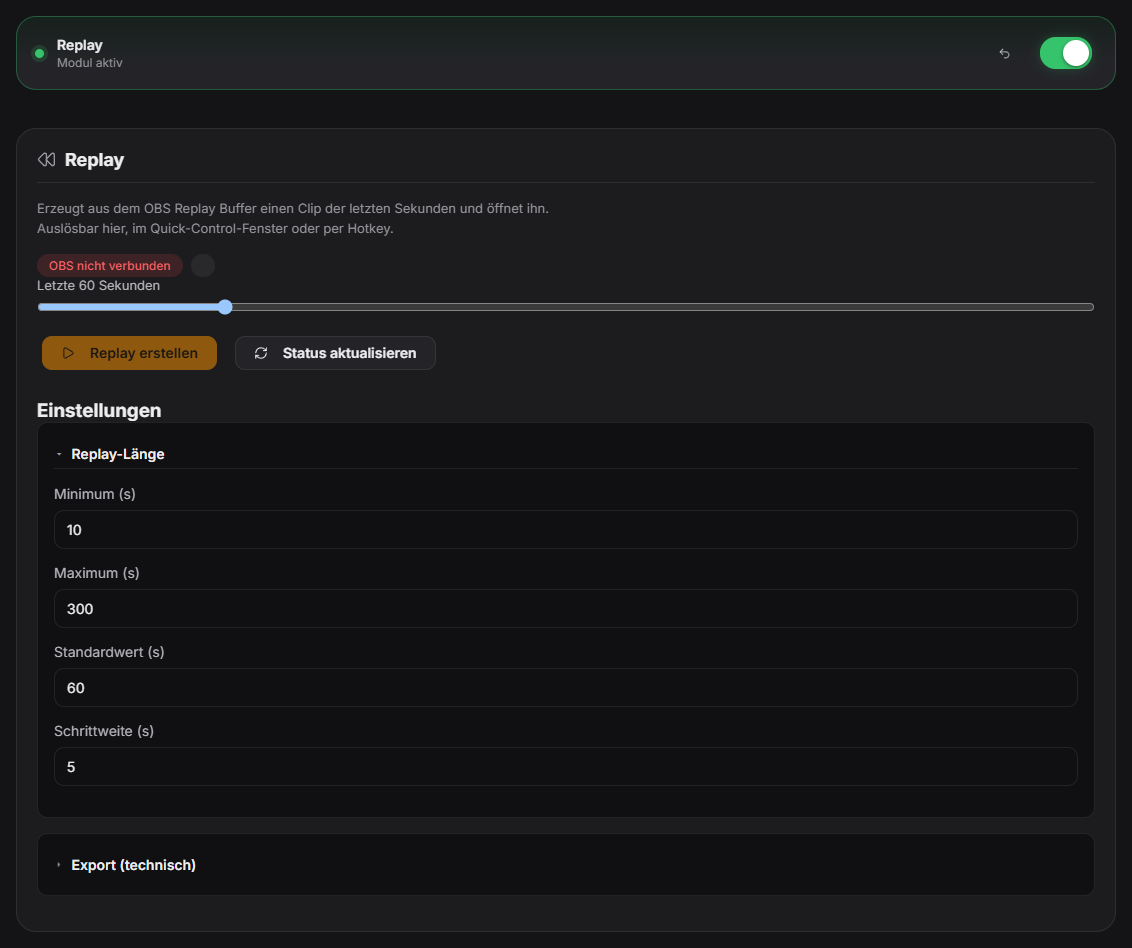
Records a short buffer via OBS and shows it as an instant replay on demand — with slow motion and a frame look. Needs the OBS connection; the export to Resolve uses the same bridge as ClipModule. The former separate replay popup window is gone — the hotkey now opens Quick Control, where replays can also be triggered. Export settings (output folder, codec, file name) are shown directly in the Replay tab. New in 1.0.28: The length always stays within the slider limits (Stream Deck key without a value = default), a hanging ffmpeg no longer blocks replays until a restart, and file names without a timestamp get one appended. "Show in folder" and "Open replay folder" help when no player opens; errors appear in the tab. OBS raw files: size shown in the tab, "Delete raw files" and automatic cleanup after N days. New hotkey "Create replay now".
Trigger Manually via button/hotkey; the recording buffer runs through OBS.
Requirements
- OBS Studio 28 or newer, with Replay Buffer enabled.
- Zappify connected via OBS WebSocket v5.
Step by step
- 1. Enable OBS Replay Buffer:
- - In OBS: File -> Settings -> Output -> set Output Mode to "Advanced".
- - Open "Replay Buffer" tab -> tick "Enable Replay Buffer".
- - Set Maximum Replay Time (e.g. 60 seconds).
- - Save and click "Start Replay Buffer" in the main OBS window (must be active during stream!).
- 2. Configure Visualizer settings:
- - Check hotkey in Replay tab (default: Ctrl+Alt+R).
- - Set buffer duration and default time.
- - Select export folder and video codec (`copy` for instant saving without re-encoding or `libx264`).
- - Set `deleteSourceAfterTrim` whether temporary OBS replay file is deleted after trim.
- 3. Capture the overlay in OBS:
- - The replay plays in the shared overlay window — the Window Capture from "Setting up OBS" is enough. The trim time-slider opens as its own small window on the main monitor (no OBS source needed).
- 4. Trigger Replay: Press hotkey or click button in tab — replay immediately plays in overlay with slow motion.
If it doesn't work
- "Replay Buffer not started in OBS": Replay Buffer button in OBS was not clicked before stream.
- "Save Timeout (`obsSaveTimeoutMs`)": Slow disk or buffer too large — increase obsSaveTimeoutMs in tab.
- Resolve Export fails: Uses same Resolve bridge as ClipModule — check environment variables under "Clips & DaVinci Resolve".
- No player opens: use "Show in folder" and open the file manually; the replay folder can be opened directly from the tab.
Last updated: 15 November 2026