Set up the Discord bot
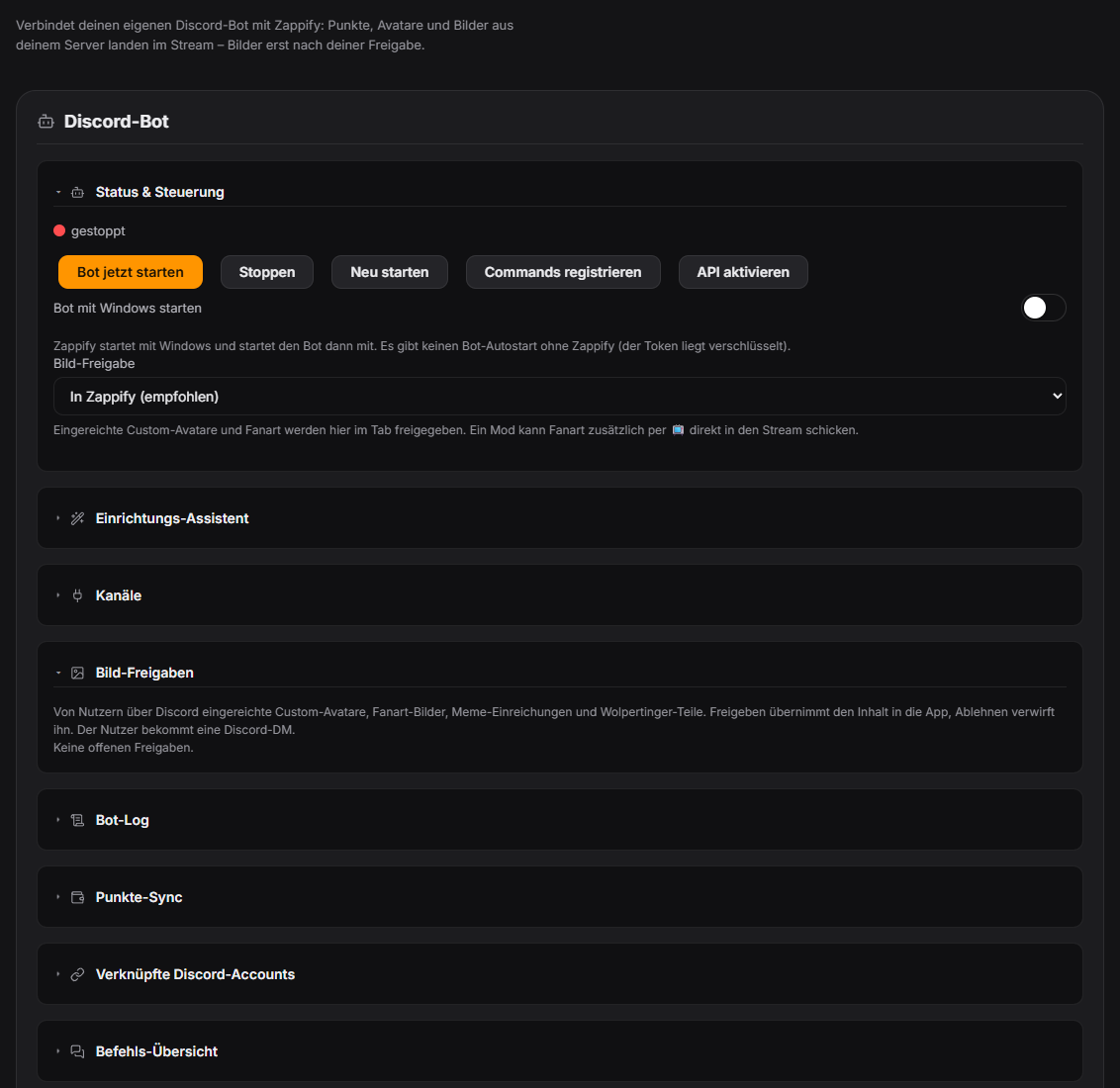
The Discord bot connects your Discord server with Zappify. Viewers link their Discord account with their Twitch/YouTube account (/link), check points and level (/user, /leaderboard), build their Wolpertinger (/wolpertinger), submit custom avatars and fan art, and play /bingo or /ssp. All commands are free (no premium gate). The bot runs locally on your machine (no cloud) — Zappify starts and manages it, and the bot token is stored encrypted (Windows DPAPI), never in plain text and never in a backup. The bot reads the viewer database read-only; points changes from Discord are applied by Zappify on the next sync. By default, submitted images are approved or rejected in the Zappify "Discord bot" tab (the viewer gets a Discord DM); alternatively via emoji reaction in Discord (switchable). Only display name, points and level are sent to Discord — never donation amounts. A dedicated "Channels" section in the tab lets you pick your leaderboard, points, custom avatar, fan art, Stream Plays battle and bad-word alert channels from a live dropdown of your server's real channels (with a text fallback offline), instead of entering them by hand. The Discord commands `/meme-submit` and `/wolpertinger-submit` let viewers submit their own meme images and Wolpertinger parts — both go through the same image approval flow as custom avatars and fan art, usable right away once you approve them. Bad-word alerts (a notification when a forbidden word is detected in chat) are a regular, per-server configurable feature. Since 1.0.15 image approvals offer "Approve + add to fanart collection"; optionally all approved Discord images land in the fanart collection automatically (setting in the Fanart tab). Even in the “In Zappify” review mode, a mod can send submitted fan art straight to the stream with a 📺 reaction. Since 1.0.24: points queued by the bot survive crashes and concurrent writes and are never booked twice (damaged files are backed up). `!linkdiscord` finds codes reliably; bot data survives Zappify updates. If the bot crashes Zappify restarts it automatically; a bot that keeps running is adopted. Image links from Discord check every redirect, the Wolpertinger preview only accepts valid builder parts. New bot bundle included. Since 1.0.27: the “Announcements” card lets the bot post to a channel when you go live on Twitch and/or YouTube (multistream = one message) and when a new YouTube video appears – with title, thumbnail, link, text template and optional mention. This needs the current bot bundle and the “Mention @everyone” permission (regenerate the invite link).
Trigger Once, in the control panel under Integrations → Discord bot (6-step wizard).
Requirements
- A Discord server where you can invite the bot.
- A Discord application with a bot token and application ID (discord.com/developers) — with the "Message Content Intent" enabled.
- The local Zappify API enabled (step 1 of the wizard does this).
- Zappify running while the bot runs (the bot will not start without Zappify).
- For meme/Wolpertinger submissions: the `!meme` command or Wolpertinger studio enabled.
Step by step
- Open the control panel, Integrations → Discord bot. Step 1: "Enable API" (restart Zappify once if prompted).
- Step 2: On discord.com/developers create a new application, reset and copy the token under "Bot", enable the "Message Content Intent", copy the application ID under "General Information".
- Step 3: Enter the token and application ID (optionally a server ID for instantly available commands) into the wizard and save — stored encrypted.
- Step 4: "Open invite link" and invite the bot to your server.
- Step 5: "Register commands" — needed once and after every bot update.
- Step 6: "Start bot now". Optionally enable "Start with Windows".
- In the "Image approvals" section, viewers submit custom avatars and fan art; you approve or reject them. The mode (Zappify tab / Discord emoji / both) can be switched at the top of the tab.
If it doesn't work
- Bot does not start: check the credentials in step 3 and make sure the local API is enabled (step 1) — after enabling it, Zappify must be restarted once.
- Submitted images do not appear in "Image approvals": the image approval mode is set to "Via Discord emoji" — switch it to "In Zappify" and restart the bot once. The API must also be running with an API key set.
- Points sync is stuck: click "Sync now" in the "Points sync" section; if it says "disabled", the Discord integration is turned off in the app settings.
- Slash commands missing: run "Register commands" again — global commands can take up to an hour, with a stored server ID they appear immediately.
- Large camera photo is rejected: images up to 30 MB are accepted and automatically scaled down to at most 2048 px (from 1.0.18). Shrink larger files first.
Last updated: 14 November 2026