Fanart
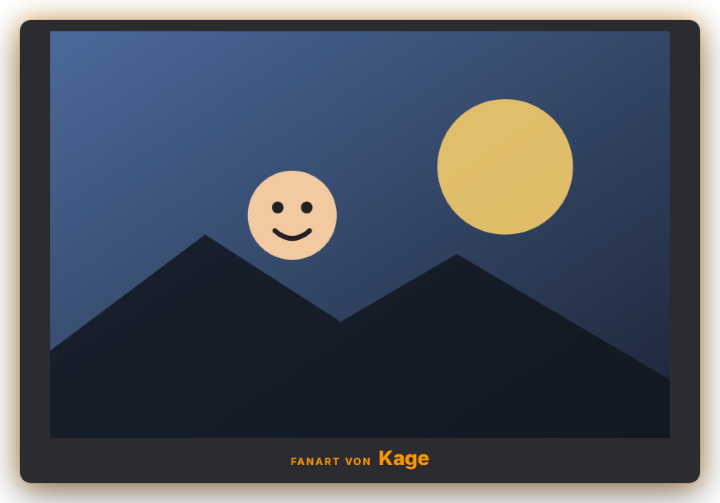
The fanart module shows images from your community on stream and cycles through them during a showing at an adjustable interval (optionally shuffled, with the artist's name and a custom label in front, default "Fanart by"). Adding images is easy: drag them into the tab (whole folders work too), paste from the clipboard with Ctrl+V or click to choose – PNG, JPG, GIF and WebP up to 8 MB, with a progress display and duplicate detection. Animated GIFs stay animated. In the gallery you edit artist names, show an image right away ("Show now") or delete several at once. From the Discord bot tab, submitted images can be taken over with "Approve + add to fanart collection"; optionally all approved Discord images land in the collection automatically (the Discord name is then shown as the artist). As with the leaderboard you choose "Standalone" (its own popup next to the chat, freely placed or "Couple to chat", optionally every X minutes) or "In the chat window" instead of the chat. Viewers call it with !fanart (with a cooldown). Appearance: 8 presets (the default looks like the chat, plus e.g. "Gallery" and "Polaroid") and AI design (Premium). Images are stored as files on your computer; an existing collection from the Chat tab is carried over automatically on update. New in 1.0.28: Duration 0 means "permanent" everywhere, `!fanart` reports an empty collection in chat and has a per-viewer cooldown, artist names go through the word filter, removing the image currently shown advances to the next, and data export/deletion also finds the Discord name.
Trigger "Show now" in the tab or in Quick Control, the !fanart chat command, automatically every X minutes, via automation, Stream Deck or the phone remote.
Requirements
- Free. AI design is Premium.
- To take over images from Discord: the Discord bot (see "Setting up the Discord bot").
Step by step
- Enable the module in the "Fanart" tab (Chat group).
- Drag images onto the drop area, paste with Ctrl+V or click to choose; add the artist names in the gallery.
- Under "Display" set the mode (standalone or in the chat window), display duration and image interval.
- Optionally enable "Show regularly" and "Automatically add approved Discord images".
- Pick a preset and – in "Standalone" mode – place the card in the Positions tab.
If it doesn't work
- An image is not added: only PNG, JPG, GIF and WebP up to 8 MB are accepted; images already in the collection are skipped as duplicates.
- Fanart does not appear automatically: "Show regularly" only works in "Standalone" mode; in chat-window mode the Chat tab controls the switch.
- A Discord image is missing from the collection: only images approved after enabling automatic adding end up there. Take older ones over with "Approve + add to fanart collection" in the Discord bot tab.
Last updated: 15 November 2026