Chat overlay
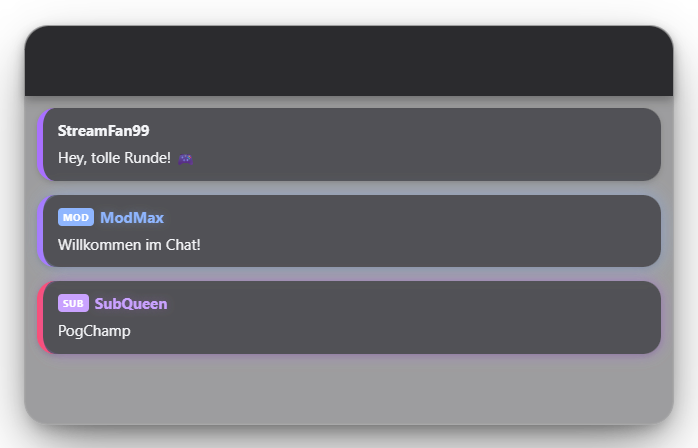
Displays incoming chat messages from both platforms on stream. Look (colors, presets or an AI design), badges and display duration are configurable in the module tab. Since 1.0.15 the leaderboard and fanart are separate modules with their own tabs and run independently of the chat. If one of them is set to "In the chat window", it replaces the chat like before – the Chat tab then controls the switch. In "Standalone" mode the chat stays visible and the leaderboard or fanart appear as their own popup next to it. New in 1.0.17: when a mod deletes a message, bans or times out a viewer or clears the chat (Twitch or YouTube, also from Quick Control / phone), the message disappears from the chat overlay immediately. Chat with an AI design no longer flickers on new messages. New in 1.0.22: Twitch emotes show up as images instead of words in the chat overlay and in the Quick Control live chat, animated emotes stay animated (if an image fails to load, the emote name is shown). The "Twitch name colours" switch (off by default) shows names in the colour the viewer picked on Twitch; colours that are too dark are lightened. New messages push the older ones up smoothly, and deleted messages disappear one by one instead of rebuilding the whole chat. Premium: the "Display filter" group decides whose messages appear in the OBS chat – a message is shown if the sender meets at least one rule (moderators, VIPs, subs/members, from a level, points, message count, donation total, sub months or "around for X days"). The broadcaster is always shown; points, XP and the Quick Control live chat still see everything. In Quick Control, "Filter: on/off" toggles it directly. Since 1.0.24: Zappify only keeps the last 500 messages of the daily history (the daily count stays complete); the history is no longer part of the app backup. The word filter “whole words only” also works with umlauts at the start/end of a word. Since 1.0.25: GIFs viewers post in Twitch chat appear as animated images in the chat overlay and in the Quick Control live chat (size limited, secure sources only; if a GIF fails to load, the text is shown). Read-aloud (TTS/commentator) skips GIFs.
Trigger Automatic on every chat message once Twitch/YouTube is connected.
Requirements
- Twitch and/or YouTube connected (see "Connecting Twitch & YouTube").
- The overlay window added to OBS as a Window Capture (one-time, see "Setting up OBS") — the chat overlay shows up in it automatically.
Step by step
- If not done yet: add the "Zappify - Overlay" window to OBS once as a Window Capture (see "Setting up OBS").
- Select a theme preset or customize via AI design in the module tab.
- Set up the leaderboard and fanart in their own tabs (Chat group) – see "Leaderboard" and "Fanart".
- Optionally add bot accounts under "Hidden users" in the Chat tab (one name per line) to keep them out of the overlay.
If it doesn't work
- Emotes not showing: BTTV/7TV/FFZ emotes for Twitch are loaded automatically but require an active internet connection at stream start.
- Hide bot messages: In the Chat tab under "Hidden users" add the bot names (e.g. Nightbot), one per line, case-insensitive. Or right-click a message in the Quick Control panel → "Hide in chat overlay". Those messages don't appear in the overlay and don't count toward the leaderboard.
- Overlay stays empty: Check if Twitch/YouTube show as "connected" in the status tab.
- Emotes appear as text: the image could not be loaded (e.g. a brief connection drop), so the emote name is shown instead. YouTube channel emojis (:_name:) stay text because the official YouTube API provides no images for them. AI designs for the chat also show emotes as text.
Last updated: 12 November 2026