Screen text recognition (OCR)
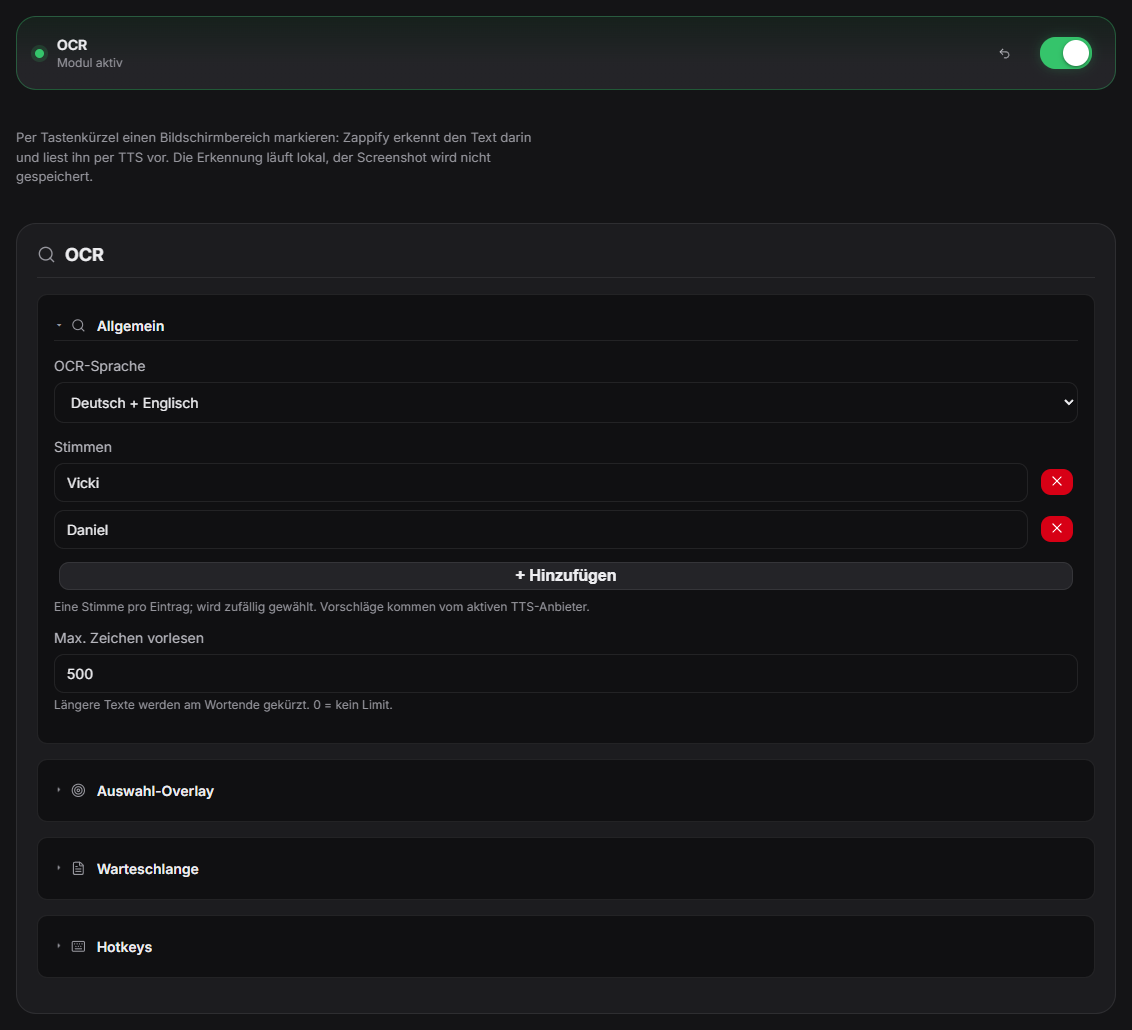
Watches a defined screen region via text recognition (Tesseract, bundled) and can trigger overlays or sounds on certain values — e.g. lap times or kill feeds in a game. Unlocked per activation. Can also be started via a button in the Quick Control window, not just the global hotkey or the OCR tab. New in 1.0.17: the last selected screen area is remembered and can be read again without a new selection – via its own hotkey, the “Read again” button in Quick Control, a Stream Deck / remote key or automation. “Max characters to read” (default 500) shortens long texts at a word boundary.
Trigger Recognized text in the watched region.
Requirements
- A window or screen region to monitor.
- Zappify Desktop App (includes Tesseract OCR for German/English).
Step by step
- In the OCR tab start the region selection (button or hotkey Ctrl+Shift+O) and drag out the target screen area (e.g. kill counter or lap time).
- Set the recognition interval.
- Configure Regex & Triggers: e.g. if recognized text contains "VICTORY" -> play Sound 1 or trigger Chaos mode.
- Select language pack (German/English pre-installed).
If it doesn't work
- Text misrecognized: Game font too small, low contrast, or region imprecise — enlarge selected area.
- When first switched on, Zappify downloads the text recognition language data once (about 4 MB). Without internet text recognition does not start – Zappify tries again on the next start.
Last updated: 30 October 2026
Was this helpful?