Music player & overlay
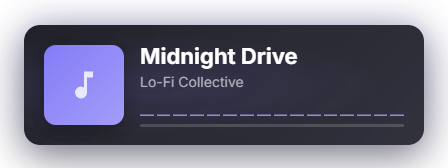
Plays local music and optionally shows title and cover on stream. Moods are folders: one directory per mood, played from at random. Seeking, playlist management and an audio visualizer are built in. Music files live in the assets folder. Since 1.0.15 music ducks: while TTS, Zappi, a meme or the screenshot reader speaks, it gets quieter and comes back afterwards – switchable in the Music tab under "Music ducks" (on by default). New in automation: change mood, pause/resume, next song and the trigger "Song changed". New in 1.0.19: The now-playing card stays in place on song changes and only crossfades cover and title. New: progress bar, live audio spectrum and accent color from the cover (all three can be turned off). Appearance system with three own looks (Mood Glass, Compact, Daylight), the cross-module styles and AI design (Premium). The card is placed in the Positions tab (the old corner setting is carried over) and is no longer stretched when enlarged. Six reworked effects; volume, shuffle and repeat persist across restarts. Seek bar in Quick Control. New in 1.0.20: The "Keep Zappify audio out of the VOD" switch removes the "Zappify Ton" audio source from the Twitch VOD track and protects against music mutes in the VOD. Alerts and TTS are then missing from the VOD as well, because OBS cannot split the Zappify audio any further. Since 1.0.24: the music card’s effect re-measures itself on scene or size changes – the card is no longer squashed. New in 1.0.26: on song change the accent colour fades smoothly, the cover flips in 3D to the new song, long titles/artists scroll as a marquee (only when too long) and the cover pulses gently with the bass.
Trigger Manual control in the module tab / Quick Control; mood switching.
Requirements
- Local music files in `assets/music/` directory on PC.
- Supported formats: MP3, WAV, OGG, FLAC.
Step by step
- Create mood folders under `assets/music/<mood_name>/` (e.g. `assets/music/chill/`).
- Place audio files in respective mood folders.
- Cover art: The module reads `cover.jpg` in the mood directory or embedded ID3 cover tag.
- Make sure the overlay window is captured in OBS via a Window Capture (see "Setting up OBS") — the now-playing overlay appears in it automatically.
- Instant Switch: Changing moods in module tab or Quick Control instantly switches track and updates OBS overlay.
If it doesn't work
- Songs not playing: Check file paths for special characters or mute state.
- Cover missing: Place a `cover.jpg` in the mood folder.
Last updated: 13 November 2026