Phone remote control
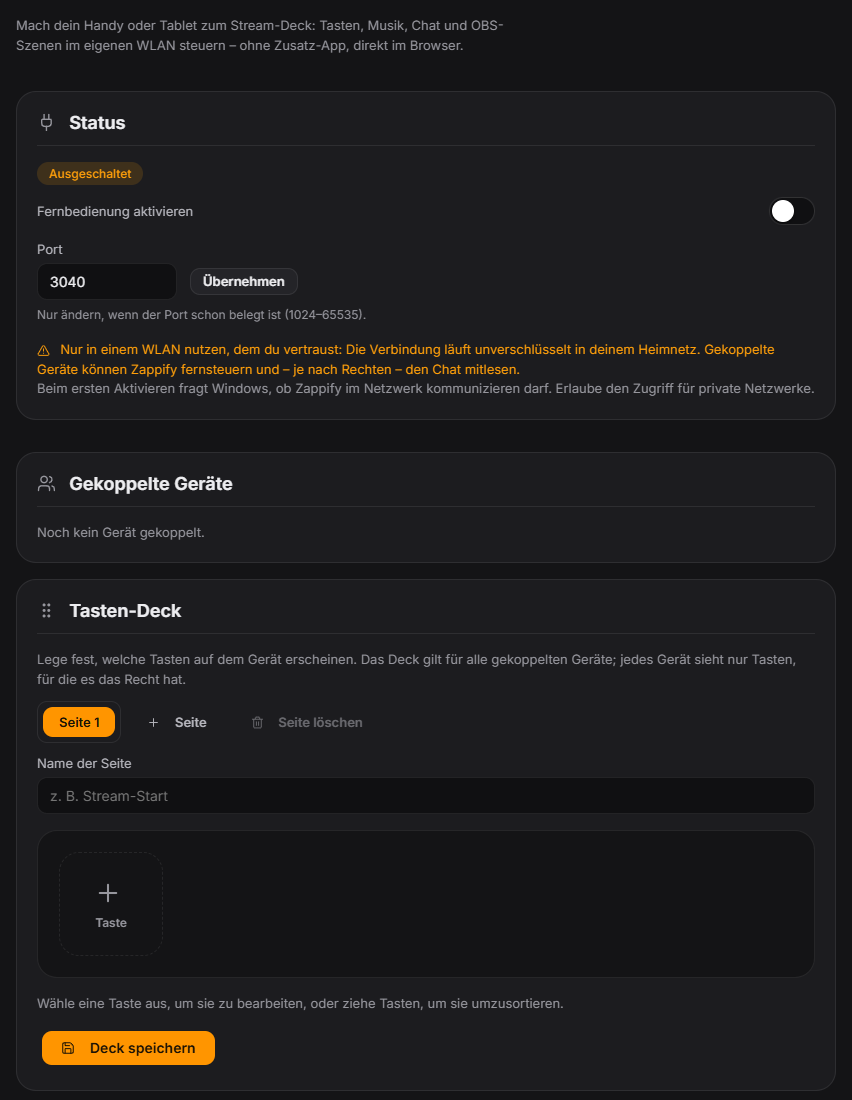
The remote control turns a phone or tablet on the same Wi-Fi into a control surface for your stream. Nothing has to be installed — the interface runs in the device's browser. Pairing works via QR code; every device gets its own access, can be renamed and unpaired with a single click. You decide per device what it may do: actions, music & sounds, read chat, moderation and OBS scenes — so a mod tablet can, for example, only moderate chat. The button deck is freely configurable (several pages, up to 32 buttons per page, drag & drop ordering, label, icon and color) and offers 29 actions, including pause/skip queue, stop audio, focus/hidden, end poll, start quiz, spin the wheel and points wheel, counter ±1, timer/countdown, replay, top donator, end screen, draw giveaway, start hype train, music and mood, play a sound from the sound library, fire an automation rule and switch OBS scene. Besides the deck, the phone offers the views Live (queue, modes, poll templates & quiz, timers & counters, wheels), Music (track, play/pause, volume, moods, sounds), Chat (read, send, tap a message → delete, timeout, ban, read aloud, hide) and OBS (scene list). Premium modules are locked or unlocked on the phone exactly as on the PC. The remote runs purely locally between your PC and the device — no data is sent to aaronius.com. New since 1.0.15: start giveaway, start poll template, start/close number guessing, start/end bingo round, goal +1/−1, chaos +10/reset, start/stop EchoPenalty, end hype train, set clip marker, apply stream info preset, show social media, toggle bubbles, and show leaderboard and fanart. With the tech monitor, warnings about the microphone, dropped frames and recording also appear on the phone. New in 1.0.16: the “Draw” view for Draw & Guess (draw with colors, brush sizes, eraser and fill bucket) plus buttons for Draw & Guess, Chat Pointer, No-Laugh Challenge and Face Stickers. New in 1.0.17: timer ±1 min, OCR keys and private notices from the Regulars radar as a push with vibration on your phone. New in 1.0.22: the emergency stop works the same everywhere – Quick Control (fixed red button in the toolbar), global hotkey (default Ctrl+Shift+F12), phone, Stream Deck or automation: sound and speech stop, overlays disappear, queue and music pause, Stream Plays stops. A "Emergency stop active · Resume" banner also appears on the phone; new button "Release emergency stop". New in 1.0.23: keys “Replay last alert” (all or a specific type – replays only the alert, without points or credits) and “Mute all overlay sounds”. Since 1.0.24: locked premium keys and keys for disabled modules are marked like on the Stream Deck and update live; pressing one does nothing but shows the notice. New in 1.0.28: New keys: cancel number guessing, reset and pause infection game, cancel giveaway, Screen Picker random/vote and cancel prediction.
Trigger "Remote" tab in the control panel under Integrations; on the phone via the paired browser link.
Requirements
- Zappify Premium.
- PC and phone/tablet on the same trusted Wi-Fi (home network).
- A current browser on the device — no app install needed.
- For OBS scenes: OBS connected in Zappify. For moderation: Twitch/YouTube connected.
Step by step
- In the control panel open Integrations → Remote and switch the remote control on.
- On first activation the Windows Firewall asks for network access — allow it for private networks.
- Click "Generate QR code" and scan it with your phone camera. The code is valid for 5 minutes and for a single device only.
- Give the device a name in the tab and set its permission groups (actions · music & sounds · read chat · moderation · OBS scenes).
- Create buttons in the deck editor: pick an action, set label, icon and color, reorder via drag & drop, add more pages if needed.
- On the phone switch between Deck, Live, Music, Chat and OBS. Tip: add the page to your home screen so it opens like an app.
If it doesn't work
- The phone cannot reach the page: PC and phone must be on the same Wi-Fi (no guest network, no mobile data). The Windows Firewall prompt must be confirmed for private networks.
- The QR code no longer works: it expires after 5 minutes or after the first pairing — simply generate a new one.
- Port in use: the default port is 3040 and can be changed in the tab; pair again afterwards.
- A section is missing on the phone: the device lacks the matching permission group — enable it for the device in the tab.
- Security: the connection is unencrypted inside your home network. Only use it on a Wi-Fi you trust — not on public or shared networks. An unpaired device loses access immediately.
- Devices are gone after an app backup/import: device pairings are deliberately not part of the backup — just pair the devices again.
Last updated: 15 November 2026