User image (viewer submissions)
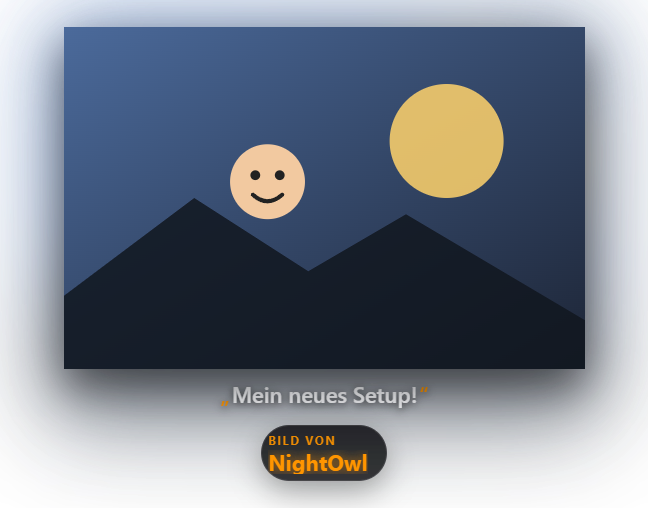
Shows images submitted by viewers (e.g. fan art, screenshots) in the stream once you've approved them in the control panel or via the Discord bot. Next to the submitted image, a small avatar tile shows the submitter's Wolpertinger or profile picture and their badges, provided their Discord link is matched to a stream account. Since 1.0.15 the viewer image tab shows a sample image at the press of a button, so position, frame and duration can be checked without a Discord submission. The position can be set freely in the Positions tab. New in 1.0.19: Approved images appear as a card instead of a bare image: 8 looks (including gallery frame, Polaroid, glass, neon, terminal) with their own entrance, a color glow of the image in the background, a time bar and a sender bar with avatar and badges. The text of the Discord message is shown as a caption (max. 120 characters, visible and removable during approval). With several images the card shows “+N more images”. The card follows the global design choice. The caption requires the current Discord bot update. Since 1.0.25: If the same Discord image is triggered twice (e.g. mode “Both”: emoji and approval in the tab), it is shown only once within 2 minutes.
Trigger As soon as a submission is approved.
Requirements
- Free.
- Submission runs through the Discord bot (see "Set up Discord bot").
Step by step
- Set up the Discord bot so viewers can submit images.
- Approve or reject submitted images in the control panel (Discord Bot tab → Image approvals).
- Set the appearance in the User Image tab via color presets or a custom AI design.
- Set the position via the Positions tab.
Last updated: 12 November 2026