Goal bar
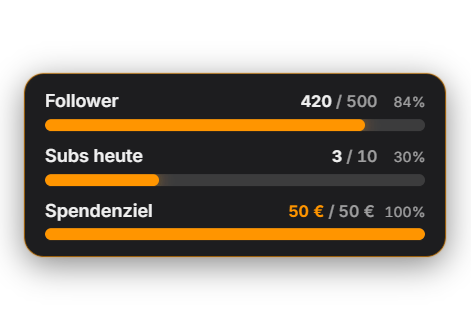
The goal bar shows up to 8 goals as stacked progress bars in one shared, freely positionable overlay card. Every goal has a source: followers/subscribers (total, synced roughly once a minute, or "new this stream"), subs (counts new subs, resubs and gifted subs — not the total), donations, bits, stream duration (minutes, runs while you are streaming), a custom counter (+/− in the tab and in Quick Control) or an existing counter from the Counter module. Counting works "per stream" (reset automatically on stream start, or via the "Start new session" button) or "permanent"; a platform filter limits a goal to Twitch or YouTube. Per goal you choose whether it is always visible or only pops up briefly on progress. Reaching a goal plays a short celebration animation, optionally a sound, and fires the automation trigger "Goal bar: goal reached" with {{goalTitle}}, {{goalTarget}} and {{goalSource}}; reached goals stay or are hidden on request. Automation actions can change, set and reset values and start a new session. Appearance: 8 color presets (including the 5 cross-module styles) for free, your own AI design as a Premium option. Since 1.0.15 the goal bar replaces the former donation goal and the like goal of the like counter: both are carried over automatically as goals on update. New source "YouTube likes" (requires the active like counter). The sound library has the events "Goal bar: progress" and "Goal bar: goal reached". A "Per stream" session starts exactly once per stream, even if OBS, Twitch and YouTube report the start at different times; goals with the "Counter" source follow +1 from hotkeys, chat commands or buttons immediately. Since 1.0.24: new settings “Chat message when goal is reached” (placeholders {title}, {value}, {target}) and “Stretch goal” (raise the goal by +X or multiply it, the bar keeps going). Default: off, the bar stays full.
Trigger Automatically through platform events (follow, sub, donation, bits) and stream duration; custom counters via +/− in the "Goal bar" tab, in Quick Control or through automation.
Step by step
- Switch the module on in the "Goal bar" tab (Alerts) and create a goal.
- Set title, source, target value and counting mode (per stream / permanent), plus the platform filter if needed.
- Choose per goal: always visible or only shown on progress (duration configurable).
- Optionally assign a sound to the "Goal bar: goal reached" event in the sound area.
- Place the card in the Positions tab and pick a preset.
If it doesn't work
- The sub goal does not show my total: the "Subs" source counts new subs, resubs and gifted subs from activation on — not the channel's current sub count.
- The follower number lags behind: the total is synced with the platform roughly once a minute.
- A "per stream" goal was not reset: the session starts automatically on stream start; alternatively click "Start new session" in the tab.
Last updated: 7 November 2026