Text-to-speech (Polly, Azure, ElevenLabs, Piper)
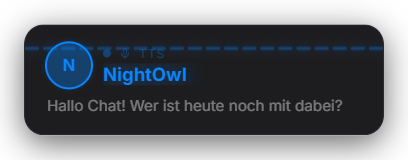
TTSModule reads messages aloud — triggered by !tts, on donations, in the meme / OCR / Zappi modules, or from the Quick Control context menu. The provider is chosen globally (Misc settings › Integrations › Text-to-speech). Switching takes effect immediately, no restart. Piper needs no account and runs offline. The card view (without the mascot) has its own appearance panel with color presets or an AI design. Since 1.0.14 new installations use Piper by default; existing installations keep their chosen provider. If a cloud provider rejects the credentials (invalid key, wrong region) or none are stored at all, Piper takes over automatically instead of TTS, donation announcements and the mascot staying silent – the log names the cause and where to fix it. The "Ready to go?" check on the home tab has its own "Speech output" row for this. New in 1.0.15: "Maximum length" (default 300 characters) and "Cooldown per viewer" (off by default) for !tts. Points are deducted only after the word filter and refunded if speech output fails; a price of 0 makes the command free (30 points without your own setting). While TTS speaks, music is turned down. System-wide hotkeys are no longer pre-assigned – on existing installs the old defaults (Ctrl+P, Ctrl+T, Ctrl+Shift+C …) were cleared once, your own choices stay. New in 1.0.17: custom chat reply for TTS messages that are too long (placeholders {{name}}, {{length}}, {{max}}). When a mod deletes a message or bans a viewer, their pending TTS messages are dropped. New in 1.0.19: Karaoke: the TTS card highlights the word being spoken in sync with the voice (real word timings with Azure, ElevenLabs and Polly, estimated for Piper). The card without the mascot shows the profile picture with a ring and an audio-reactive display (equalizer, level line or ring, selectable in fine-tuning) plus “+N waiting”. The card only appears once the voice has been generated; upcoming messages are generated in advance. All talking modules share one playback path, and the TTS volume slider now works. Under Other settings → Speech → “Quality, reliability & cache”: loudness matching, a local speech cache, automatic fallback to Piper on failure and a cost limit for cloud providers. New TTS section in Quick Control (skip, pause, test, clear, volume) and buttons for remote/Stream Deck. Premium: `!stimme` – viewers pick their voice from an approved list (`!stimme`, `!stimme <name|no.>`, `!stimme reset`). Since 1.0.24: the “Clear queue” hotkey only removes TTS entries from the queue and refunds their points; the speech cache now cleans up in the background (fewer stalls with heavy TTS). New in 1.0.28: Points are refunded on playback errors, "Clear queue", removing single items and moderation. `!TTS` works in any capitalisation and explains itself on wrong input, rejection replies are throttled, and the intro sound length can be capped. New automation triggers "TTS spoken" and "TTS rejected".
Trigger Chat command !tts <text> (default: everyone), donation read-out, or Quick Control right-click.
Requirements
- Piper (recommended to start): no account, no key. On first use the app downloads the Piper binary (~20 MB) plus the German voice de_DE-thorsten-medium (~60 MB) to userData/piper-bin. Fully offline afterwards.
- Amazon Polly: AWS account + IAM user allowing polly:SynthesizeSpeech and polly:DescribeVoices, access key / secret key / region.
- Azure Speech: Azure account, a "Speech" resource, its key + region (e.g. westeurope). 500,000 characters/month are free.
- ElevenLabs: account at elevenlabs.io, API key from your profile. Free tier is small (~10,000 characters/month).
Step by step
- Open Misc settings › Integrations › "Text-to-speech (provider)" and pick the service under "Provider".
- Piper: leave "Auto-download binary + German voice" enabled. The first !tts downloads everything once — wait a moment. Have your own Piper install? Enter the path to piper.exe and the voices folder (.onnx / .onnx.json) in the same fields.
- Amazon Polly: create an IAM user, attach "AmazonPollyReadOnlyAccess", then enter access key ID / secret access key / region under "Text-to-speech (credentials)" › Amazon Polly. (An old config/aws-credentials.json is imported automatically on first start.)
- Azure Speech: create a "Speech" resource in the Azure portal, copy key + region from "Keys and Endpoint", enter them under "Text-to-speech (credentials)" › Azure Speech.
- ElevenLabs: create an API key at elevenlabs.io › Profile › API Keys, enter it under "Text-to-speech (credentials)" › ElevenLabs. Optionally set your own voice ID as the default voice.
- Pick a default voice: in the same section under "Default voice per provider" — the field suggests the provider's available voices (free text still works).
- Fine-tune per module: the TTS, meme and OCR tabs have their own voice list (random pick); the donation tab lets you set the announcer and donor voice separately.
- Permissions & filters: set who may use !tts in the Commands tab; enable BadWordFilter and the URL filter in the TTS tab.
If it doesn't work
- No audio after switching provider: check that valid credentials for the chosen provider are stored under "Text-to-speech (credentials)". The settings row shows no error — it appears in the Home log window.
- Piper: first !tts takes long / no sound — the one-time download (~80 MB) is still running. With a firewall/AV: allow piper.exe in userData/piper-bin. Offline: drop the binary + voice there manually and set the paths in the tab.
- Azure: HTTP 401/403 — wrong key or region (region is the short name like "westeurope", not "West Europe").
- ElevenLabs: HTTP 401 — invalid key; HTTP 429 — monthly quota used up.
- Polly "AccessDenied" / "not authorized to perform polly:SynthesizeSpeech": the IAM policy is missing or too narrow.
- A specific voice is ignored: voice names are provider-specific (Polly "Vicki", Azure "de-DE-KatjaNeural", ElevenLabs an ID, Piper "de_DE-thorsten-medium"). On an unknown name the app falls back to the provider's default voice.
- Never commit credentials to git — config/tts-credentials.json is stored encrypted and excluded via .gitignore.
- After switching provider the voice sounds different from what you set: voices of the old provider (e.g. Polly's "Vicki" while Azure is active) do not exist on the new one. Zappify then immediately uses the default voice of the active provider and writes a one-time note to the log – adjust the voice lists in the module tabs when convenient.
Last updated: 15 November 2026