Face Stickers
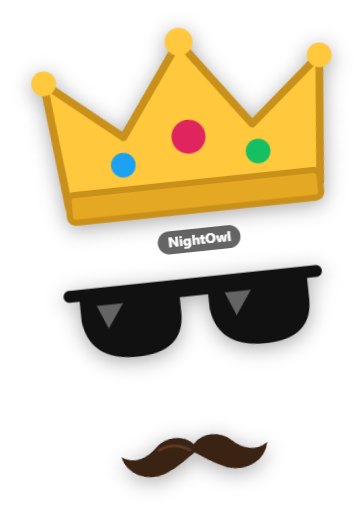
Face Stickers turn your facecam into a playground for chat: a viewer writes e.g. “!sticker hut”, pays with points from the Zappify points system and you wear a top hat for 20 seconds (adjustable). Zappify detects your face in the image of your facecam source in OBS and places the sticker on head, eyes, nose or mouth – it moves with you and tilts with your head. Each spot holds one sticker, so hat, glasses and clown nose work at the same time; a second hat waits in a queue. 8 stickers are included (top hat, party hat, crown, sunglasses, heart glasses, clown nose, moustache, tongue). Upload your own images in the tab, and your community can submit stickers via the Discord bot with /sticker-submit, which you approve in the Discord bot tab. Size, offset, price and command word are set per sticker, with a preview. “!sticker” without a name posts the list to chat. Privacy: face detection only runs while a sticker is visible, entirely on your computer (local model, no cloud service); images are never stored or transmitted. New in 1.0.17: Face stickers and the No-Laugh Challenge share one facecam source – choosing it in one tab applies to both. The readiness check in the dashboard checks the source too.
Trigger Chat command “!sticker <name>” (costs points; price and permission also in the Commands tab); “Test” in the tab. Remove in the tab, in Quick Control and via Stream Deck / phone remote (“Remove face stickers”).
Requirements
- Premium – or the free 14-day Premium trial (see “Premium trial”).
- OBS with a connected WebSocket and your camera as a source in the scene.
- The points system, if stickers should cost something.
Step by step
- Switch the module on in the “Face Stickers” tab (Alerts).
- Choose your camera source under “Facecam source in OBS”.
- Press “Test” on a sticker: the status shows “Face detected” and the sticker sits on your face in the overlay.
- Fine-tune size and offset per sticker, adjust command words and prices, add your own images via drag & drop.
- Set duration, cooldown per viewer and queue in the settings.
If it doesn't work
- Status “The source delivers no image”: check in OBS that the chosen source really is your camera and shows a picture.
- Status “Facecam is not visible in the current scene”: the camera source is hidden or missing in the active scene – stickers pause until it is visible again.
- Sticker is offset: adjust size and offset on the sticker. If the camera sits in a nested scene instead of directly in the active scene, Zappify cannot determine its position – put the camera directly (or in a group) into the scene.
- Sticker jitters or lags: adjust smoothing or frames per second in the settings.
- Viewer gets no reply: check that the command is active in the Commands tab and the viewer has enough points.
- When first switched on, Zappify downloads face detection once (about 6.5 MB). Without internet it does not start – Zappify tries again on the next start.
Last updated: 30 October 2026