Scare Meter
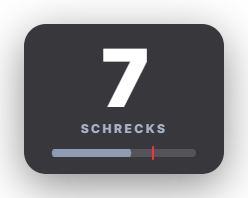
The Scare Meter listens to the volume of your microphone and detects a jump scare by a sudden, loud scream. Every scare makes the counter in the overlay jump, the card shakes and flashes briefly and shows its own text depending on intensity (default: "Zucker" / "Schreck!" / "HERZINFARKT", freely editable). Below the counter an optional live level bar runs along, with the scare threshold as a marker. Counting is "Per stream" (starts at 0 again on stream start) or "Permanent"; the card is always visible or only appears briefly after a scare. Every scare of the stream is listed with time and volume in the scare list in the tab: "Replay" cuts exactly that moment (12 s before to 8 s after) from the OBS replay buffer, "Not a scare" takes back a false detection. Optionally every scare gives points for the Chaos Counter; there is also a dedicated sound event and an automation trigger. Look: 8 colour presets (including the 5 cross-module styles) and AI custom design. Privacy: only the volume is analysed – nothing is recorded, stored or transmitted, and the microphone only runs while the module is switched on. Since 1.0.15 there is exactly one automatic reset of the count per stream – a delayed stream-start signal from OBS, Twitch or YouTube no longer resets scares already counted. Since 1.0.25: Optional chat messages (off by default, custom texts with placeholders) on every scare and on a new scare record. New: “Spin wheel on scare” – like No Laugh, a selectable random wheel then spins.
Trigger Automatically by a loud scream into the microphone; manually in the tab, in Quick Control, via Stream Deck / phone remote ("Count scare") and via automation.
Requirements
- Premium – or the free 14-day Premium trial (see “Premium trial”).
- A microphone that Windows offers as an input device.
- For "Replay": the replay module switched on and the replay buffer active in OBS.
Step by step
- In the "Scare Meter" tab (Alerts) switch the module on and choose the microphone.
- Press "Calibrate" and speak normally for 5 seconds – so that normal talking does not trigger.
- If needed, fine-tune sensitivity, minimum level and the pause after a scare.
- Set the counting mode ("Per stream" or "Permanent"), card visibility, level bar and the texts per intensity.
- Choose a look and place the card in the Positions tab.
If it doesn't work
- Normal talking or laughing triggers it: calibrate again while speaking as loudly as on stream; otherwise lower the sensitivity or raise the minimum level.
- A scare is not detected: raise the sensitivity and check that the right microphone is selected – the level bar in the tab must move when you speak. The "Ready to go?" check on the home tab shows whether capture is running.
- "Replay" returns nothing: the replay module must be switched on and the replay buffer running in OBS. The cut counts like a normal replay there.
- False detection in the counter: press "Not a scare" in the scare list or correct the counter by hand.
- Scare Meter and EchoPenalty share one microphone input – both can run at the same time.
Last updated: 12 November 2026